

Slice Master
Slice Master
Having trouble loading? Retry the game or use another option below.
Play next
Block Slide

Block Smash

Bombard Crocodilo Clicker

Bottle Jump

Cake Smash

Chill Clicker

Color Pencil Run

Color Rush
Crazy Mouse Battle

Deer Adventure
Drive Mad

Escape Jump

Escape Road Halloween

Flappy Bird 2

Grow a Garden

Hockey Random

Italian Brainrot Clicker

Italian Brainrot Clicker 2

Jetski Race

Jumping Master

Merge Brainrot

Merge Fellas

Mountain Road

Om Nom Run
Slice Master
- Rating:
- Not rated yet
- Technology:
- PlayCanvas
- Platform:
- Browser
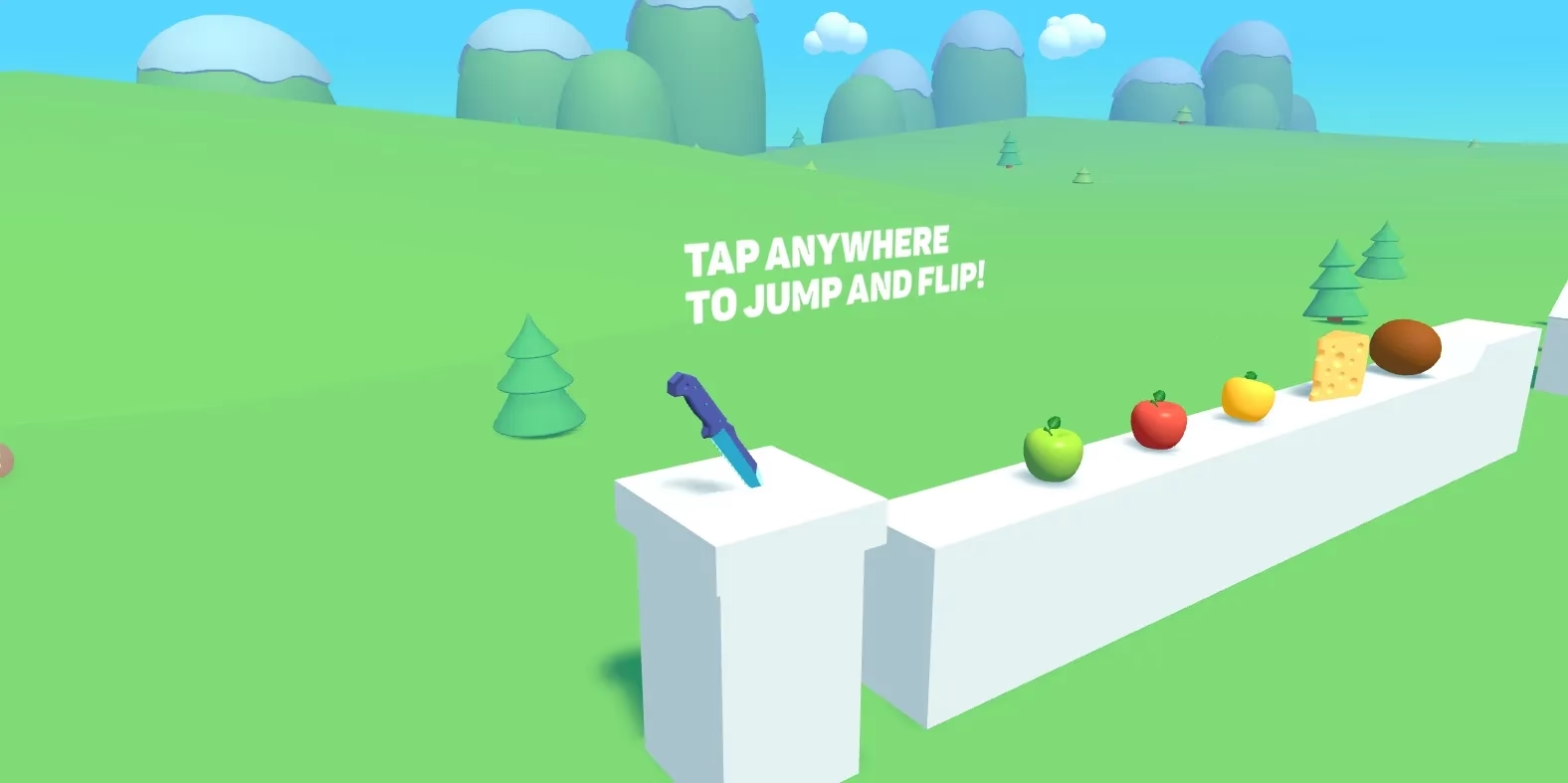
Slice Master is a one-button timing game about moving a knife along a course lined with objects to cut. Each input makes the blade jump and flip, so the important decision is when to act rather than which combination of keys to remember. The opening scene gives you a starting platform, fruit ahead and a clear jump-and-flip prompt. Watch the blade and the next platform together: being airborne is only part of the task, because you also need to judge where the knife will travel next.
Explore more in Precision.
Gameplay: Slice Master
A session begins with the knife resting on its starting platform. Click or tap inside the game to send it upward, then watch the rotation before making your next input. Slicing objects is only part of the challenge: the next platform and obstacle also matter. Give yourself a moment to read the course rather than reacting only to the nearest piece of fruit. Connect each input with the blade's position, and adjust the timing of the following jump from what you see.
Show moreShow less
Key features of Slice Master
One-button input
Use a click or tap to make the knife jump and flip, without a long list of movement commands.
A visible course
Read the platform, objects and hazards ahead before deciding when to act.
Timing and observation
Watch the blade's rotation and position, then connect the next input with where you want it to travel.
How to play Slice Master
Choose Play above and wait for the game itself to show its opening scene; a loaded frame alone does not mean all game resources are ready. Click the canvas with the left mouse button, or tap it on a touch device, following the visible jump-and-flip prompt. Watch one jump before repeating the input. Look beyond the nearest object so that you can read the next platform and obstacle. If portrait makes the course difficult to see, try landscape or the fullscreen control. Use Restart when you want to reload the game and return to its opening scene.
Wait for the opening scene
Start the player and wait until the knife and jump-and-flip prompt appear.
Try one input
Click or tap the canvas and watch the first jump before repeating the action.
Read the course
Keep the next object, obstacle and platform in view; rotate the device if portrait hides too much.
Controls and device notes
| Action | Input | Notes |
|---|---|---|
| Jump and flip | Left mouse click or touch tap | Use the game canvas rather than the surrounding page controls. |
| Reload the game | Restart button | Reloads the embedded entry; saved-progress behavior depends on the game. |
Desktop
Click the game canvas with the left mouse button to jump and flip. Keep the blade and the next platform in view before making another input.
Mobile & touch
Tap the canvas to jump and flip. Portrait crops part of the course, so landscape or fullscreen may make the next platform easier to read. Input and fullscreen behavior vary by device and browser.
Practical tips and mistakes to avoid
- Watch the blade’s position and rotation after one input before adding another.
- Look at the next platform as well as the closest object; a slice is not the same as a safe landing.
- Use the opening stretch to connect your click or tap with the resulting jump.
- Try landscape or fullscreen when the portrait camera crop makes the upcoming course hard to read.
Who might enjoy Slice Master?
The game may suit players who enjoy a simple input with a timing challenge. Concentrate on the blade and course rather than learning a large command list.
Why use this game page?
Player-first layout
The player and its loading status stay above the guide. Site advertisement slots are separate from the game controls.
Practical context
Use the contents links to find input instructions, device limitations and available game-specific notes without losing this page.
A relevant next step
Compare category and topic links, then choose another named game from the recommendations.
For a wider choice, browse the full browser-game catalog. A provider may apply its own cookies, ads or restrictions; read our privacy notes.
Questions about Slice Master
How do you control Slice Master?
Click inside the game with the left mouse button or tap the canvas. The opening prompt calls this action jump and flip.
What should I watch after a jump?
Watch the blade's rotation, the next platform and the closest object before adding another input. Use the opening stretch to connect a click or tap with the resulting movement.
Can I use a touchscreen?
Tap inside the game to jump and flip. If the portrait view crops too much of the course, try landscape or fullscreen. Input and fullscreen behavior can differ between browsers and devices.
What does Restart do?
Restart reloads the embedded game entry. Do not rely on a reload to preserve or erase saved progress; storage behavior belongs to the game.
Why can the game take time to start?
The player downloads game files after you choose Play. Wait for the knife and opening prompt. If loading stalls, use Retry or the available provider link.
Game provider
About Slice Master & game guides
Start with Slice Master
Jump and flip the knife, read the course ahead and make each input count. Find the controls and practical timing tips below, or explore another game by category.
Read the Slice Master guide and controls before you begin.
Browse by category
Explore the catalog →Guides and comparisons
All guides →Compare named games and follow the contextual links back to their play pages.
Help with a browser game that will not start
Get help with slow browser-game loading, opening prompts and controls. Use Retry, fullscreen and provider links to choose the next useful step.
Slice Master and Slice Fruit: clicks and swipes
Compare Slice Master knife timing with the swipe action described for Slice Fruit. Find the controls, player availability and related game-page links.
Find your next session
Explore browser games on Slice Master
Start with a game page rather than a download button. Each entry brings the available player, a guide and its browsing categories into one layout. Check the individual loading status and device notes before deciding what to play; a catalog listing is not a promise that every provider works on every device.
Continue with Block Master, Block Slide or Block Smash.
How to choose a game
Choose the challenge
Use category and topic pages to narrow the catalog. Read the actual objective instead of assuming two similarly labelled games share the same rules.
Check your input
Read the desktop and mobile notes on the game page. Choose a game with controls suited to your device.
Keep the next step relevant
Use related-game links and comparison articles to move from one named entry to another, without navigating an unrelated list.
A player-first browser-game catalog
Start with Slice Master above, then choose another title from the recommendations or category links. Each game page brings its player, controls and related choices together. Provider availability and device controls vary by game.